
Teams, routing rules and reports
Send each chat to the right person automatically and track response times.
Routing sends each new chat to the right person automatically, for example wholesale enquiries to the wholesale team and everyone else to retail.
Teams
A team is a group of people who share chats, such as Sales, Support, a product or a project.
- On Team & routing, scroll to Teams.
- Enter a team name and tick its members.
- Choose how chats are shared:
- Taking turns (round-robin): each new chat goes to the next person
- Least busy person: goes to whoever has the fewest open chats
- Team queue (anyone picks): chats wait in the team's queue until someone takes one
- Keep Returning customers go to the same person as last time ticked so regulars talk to someone they know.
Routing rules
A rule says if a chat matches some conditions, then send it to a team or person.
- Under Automatic routing, give the new rule a name.
- Add conditions. You can use:
- the message containing any of some keywords, for example "bulk, wholesale"
- a contact column, for example Customer type is Wholesale, or Project is Skyline
- the contact being in a list, or having a tag
- the customer replying to a campaign in the last 3 days
- the time of day: inside or outside business hours
- the customer type: new (first message ever) or returning
- Choose whether ALL conditions or ANY condition must match.
- Choose the team or person to send it to, and set the order. Lower numbers are checked first, and the first matching rule wins.
- Keep Active ticked and click + Add rule. To change a rule later, edit it and click Save rule.
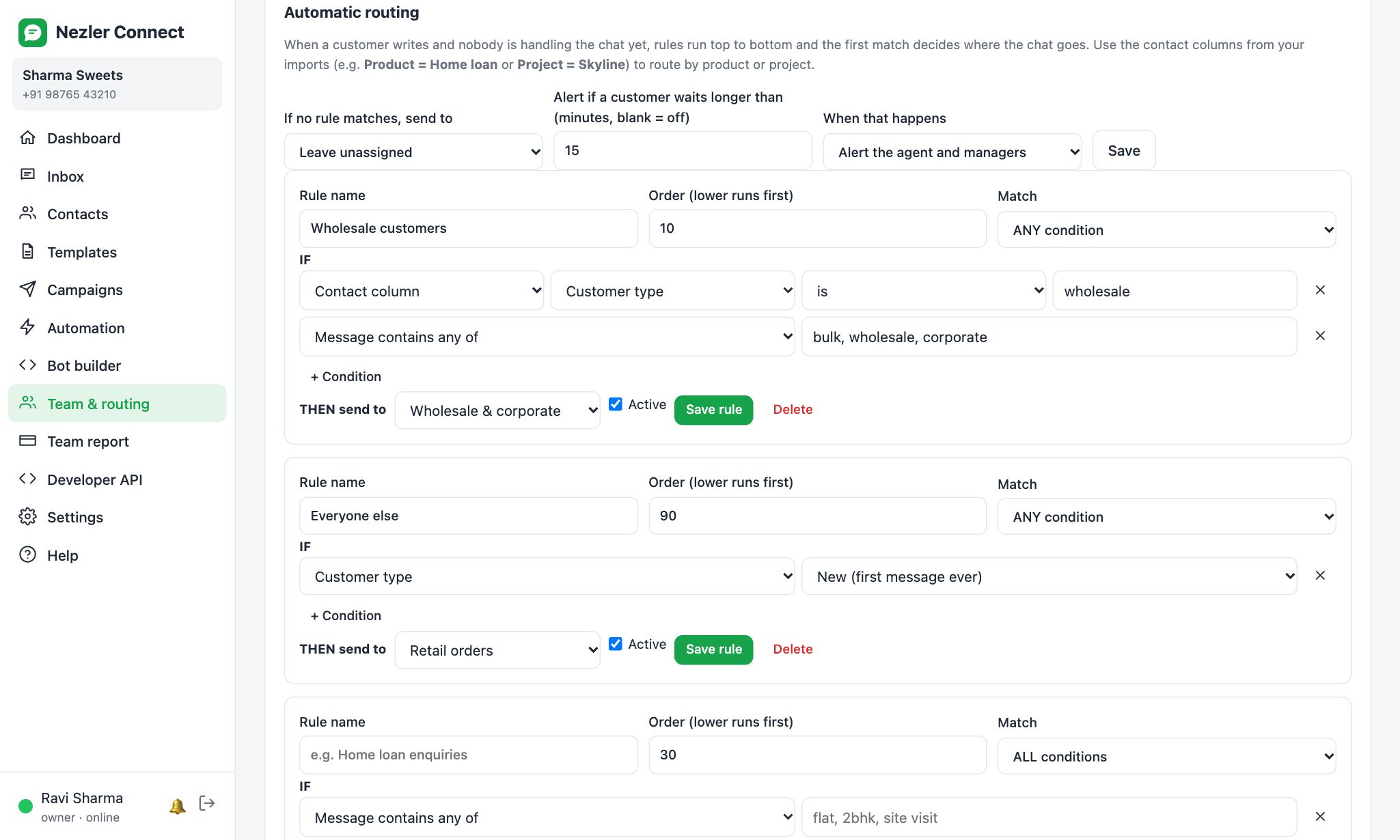
Choose what happens to chats that match no rule with If no rule matches, send to: a team, a person, or leave them unassigned for anyone to pick up.
Late-reply safety net
In the same Automatic routing box, set Alert if a customer waits longer than a number of minutes. Then choose When that happens: alert the agent and managers, or move the chat to someone else in the team. Click Save.
Team report
Click Team report to see, for today or the last 7, 30 or 90 days:
- customers waiting for a reply right now
- open chats, and late replies that triggered an alert
- for each person: open chats, chats handled, messages sent, average reply time and resolved chats
- for each team: open chats, chats waiting in the queue, chats routed in and average reply time

Reply time is how long a customer waited between their message and the next reply from your team.