
Build a chatbot
Drag and drop menus, questions and hand-overs, then test before going live.
The bot builder lets you design a WhatsApp chatbot by placing blocks on a canvas and connecting them, with no coding. A bot can greet customers with a menu, answer questions, ask for details and save them to the contact, then hand the chat to the right person.
Your bots
Open Bot builder in the menu. Each bot shows:
- what starts it, for example a keyword
- its order
- how many times it has run
- how many chats it's handling now
- whether it is On or Off
To create one, type a name and click + New bot. It starts with a ready-made welcome menu you can change.

The builder

- Left: the blocks you can add, grouped as Send, Ask, Logic and Actions.
- Middle: the canvas. Every bot begins at Start and flows from left to right.
- Right: the settings panel for whatever you've selected.
- Top: the bot's name, the Live switch, Tidy up, Test and Save.
Add and connect blocks
- Click a block on the left. It's added after the block you have selected, and connected for you.
- Or drag a block onto the canvas, then drag from the dot on the right of one block to the left side of another to connect them.
- Drag blocks around to move them. Tidy up arranges everything neatly.
- Use the −, + and percentage buttons at the bottom right to zoom. The percentage button fits the whole bot on screen.
Edit a block
Click a block to edit it in the panel on the right. Changes appear on the block straight away.
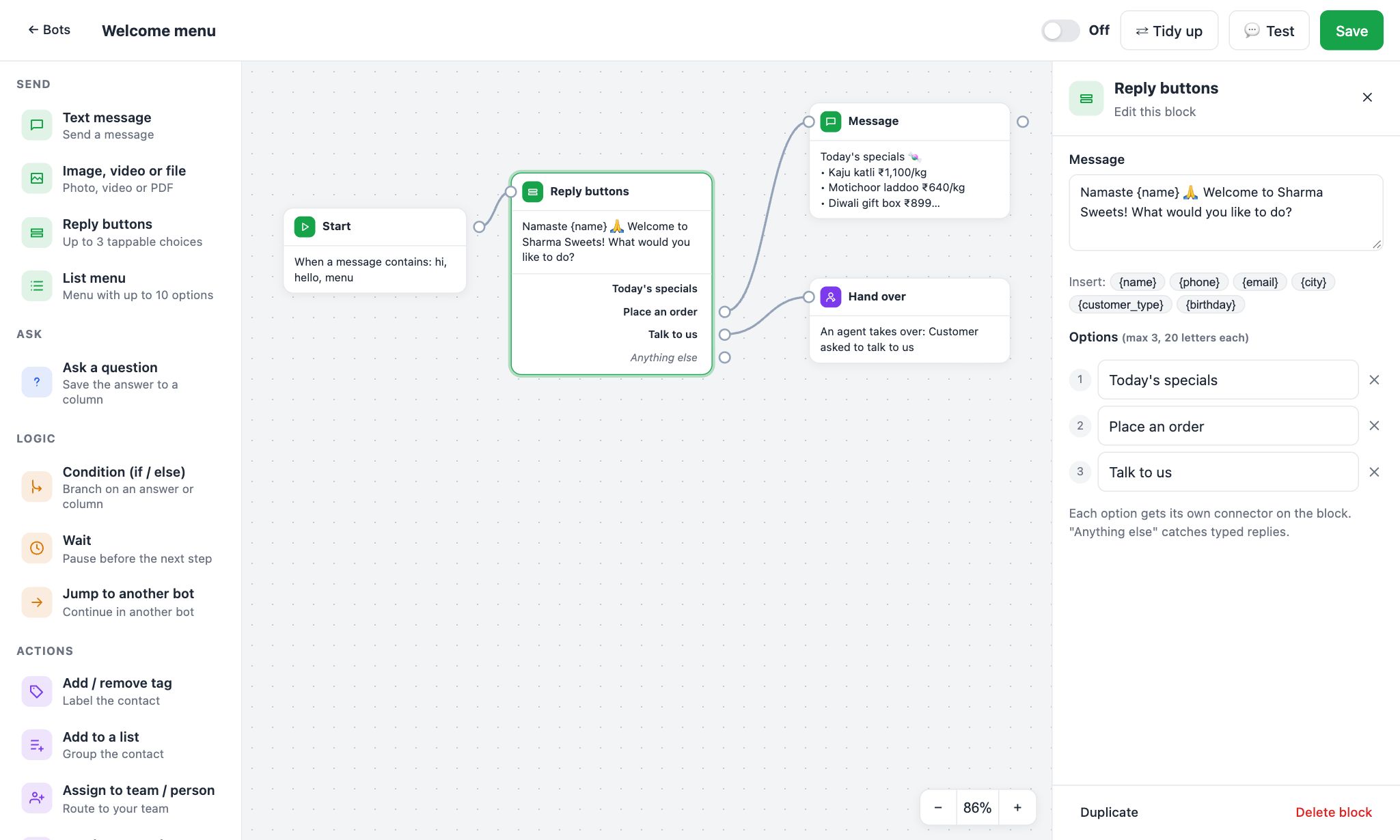
The blocks:
| Block | What it does |
|---|---|
| Text message | Sends a message. Use {name}, {city} and other columns. |
| Image, video or file | Sends a photo, MP4 video or PDF. Upload it or paste a link. |
| Reply buttons | A message with up to 3 tappable buttons. Each button has its own connector. |
| List menu | A menu with up to 10 options, for longer choices. |
| Ask a question | Waits for an answer and saves it to a contact column, such as City. Can require a number, email or phone. |
| Condition | Checks an answer or column, for example "City is Pune", and goes Yes or No. |
| Wait | Pauses for minutes, hours or days before the next step. |
| Jump to another bot | Continues in a different bot. |
| Add / remove tag | Labels the contact, for example "hot-lead". |
| Add to a list | Puts the contact into one of your lists. |
| Assign to team / person | Sends the chat to a team or teammate and stops the bot. |
| Hand over to a human | Stops the bot so your routing rules pick someone. |
| End conversation | Stops the bot. |
Reply buttons and List menu also have an Anything else connector for when the customer types something instead of tapping.
Use Duplicate or Delete block at the bottom of the panel.
When does the bot start?
Click an empty part of the canvas, or the Start block, to see Bot settings:
- Trigger: a keyword (for example "hi, hello, menu"), any message, a new contact's first message, a template button tap, or outside business hours
- Match: contains, is exactly, or starts with the keyword
- Order: when several bots match, the lowest number wins
Test, switch on, save
- Click Test to chat with your bot like a customer. Nothing is sent on WhatsApp. Tap the buttons, type answers, and click Restart to try again.
- Switch the bot to Live.
- Click Save. You can also press Ctrl + S (Cmd + S on Mac).
