
Help › Contacts
Lists, filters and bulk actions
Group contacts, find exactly who you need and act on many at once.
Lists
Lists group contacts, for example "Diwali 2025 buyers", "Wholesale buyers" or "Project Skyline leads". One contact can be in many lists.
- Create a list: type a name in the box under your lists, on the left of the Contacts page, and click + Create.
- Open a list: click it to see only its contacts. From there you can Import into this list, Rename it or Delete list. Deleting a list keeps the contacts.
- Add people to a list: tick them and use Add to list… (see bulk actions below), tick the list when you add or edit a contact, or choose it during an import.

Search and filter
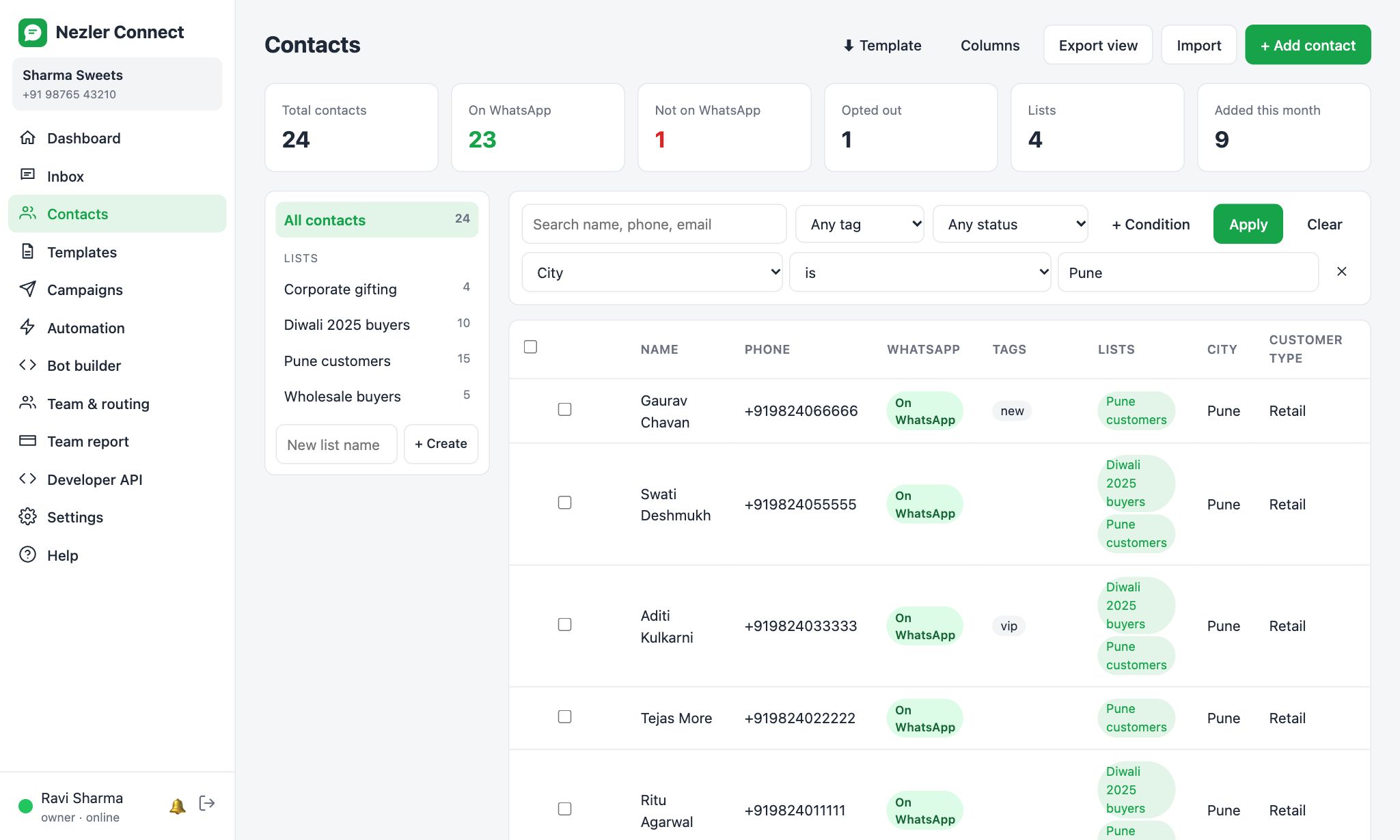
- Type a name, number or email in the search box.
- Use the drop-downs to filter by tag, or by status (opted out, on or not on WhatsApp).
- Click + Condition to filter by any column, for example City is Pune or Birthday is empty. Add as many conditions as you need, then click Apply.
Bulk actions
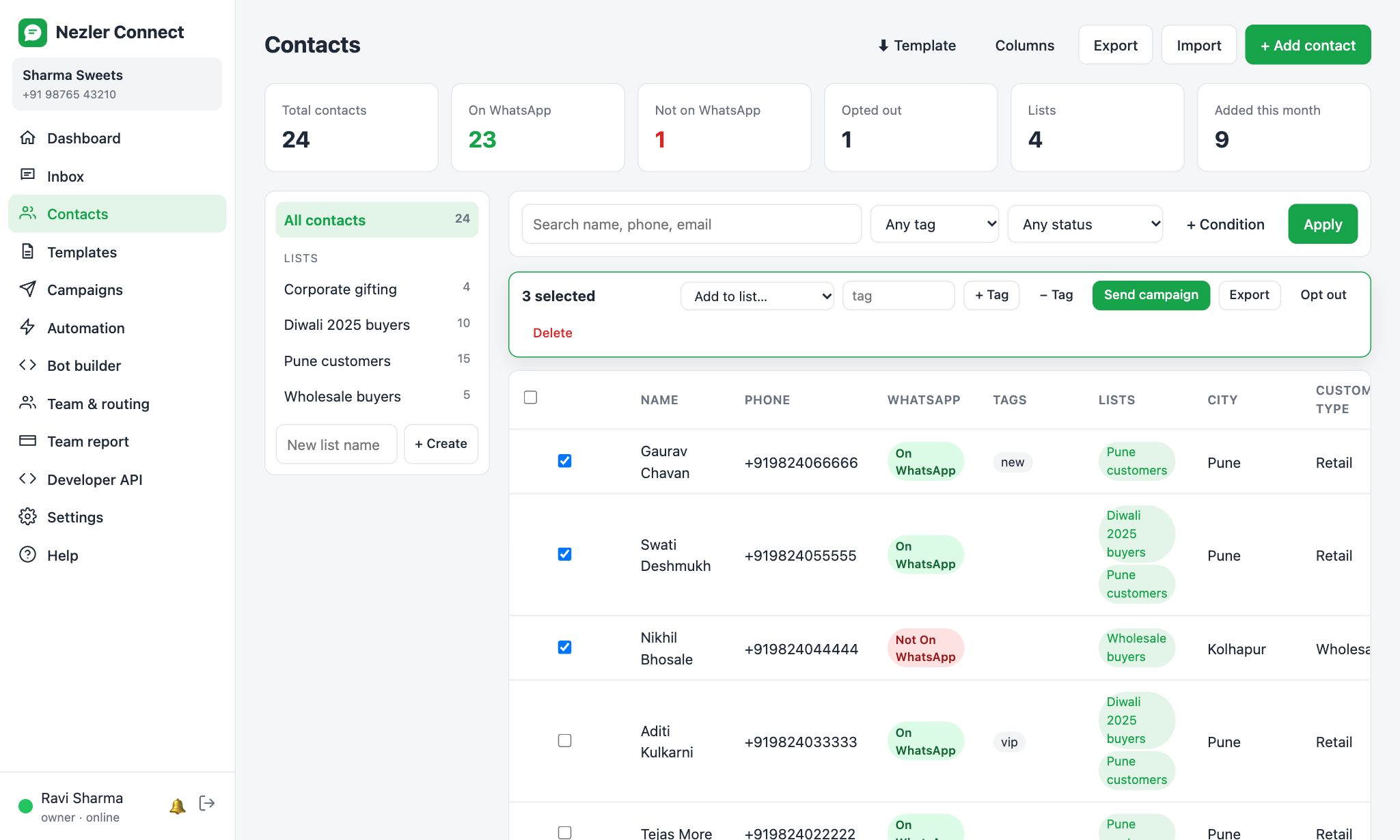
Tick the boxes next to contacts, or tick the box in the header to select everyone on the page. When there are more matches than one page, a link offers to select all matching contacts. A bar then appears with these actions:
- Add to list, or Remove from this list when a list is open
- + Tag or − Tag to add or remove a tag
- Send campaign to start a campaign with exactly these people
- Export the selected contacts to a file
- Opt out
- Delete
Tip To send an offer to a very specific group, for example wholesale customers in Pune, filter first, select all matching, then click Send campaign.