
Reply to customers
Read chats, reply, send files, quick replies and templates.
The Inbox is where your team talks to customers. Every WhatsApp chat on your number appears here, newest first.
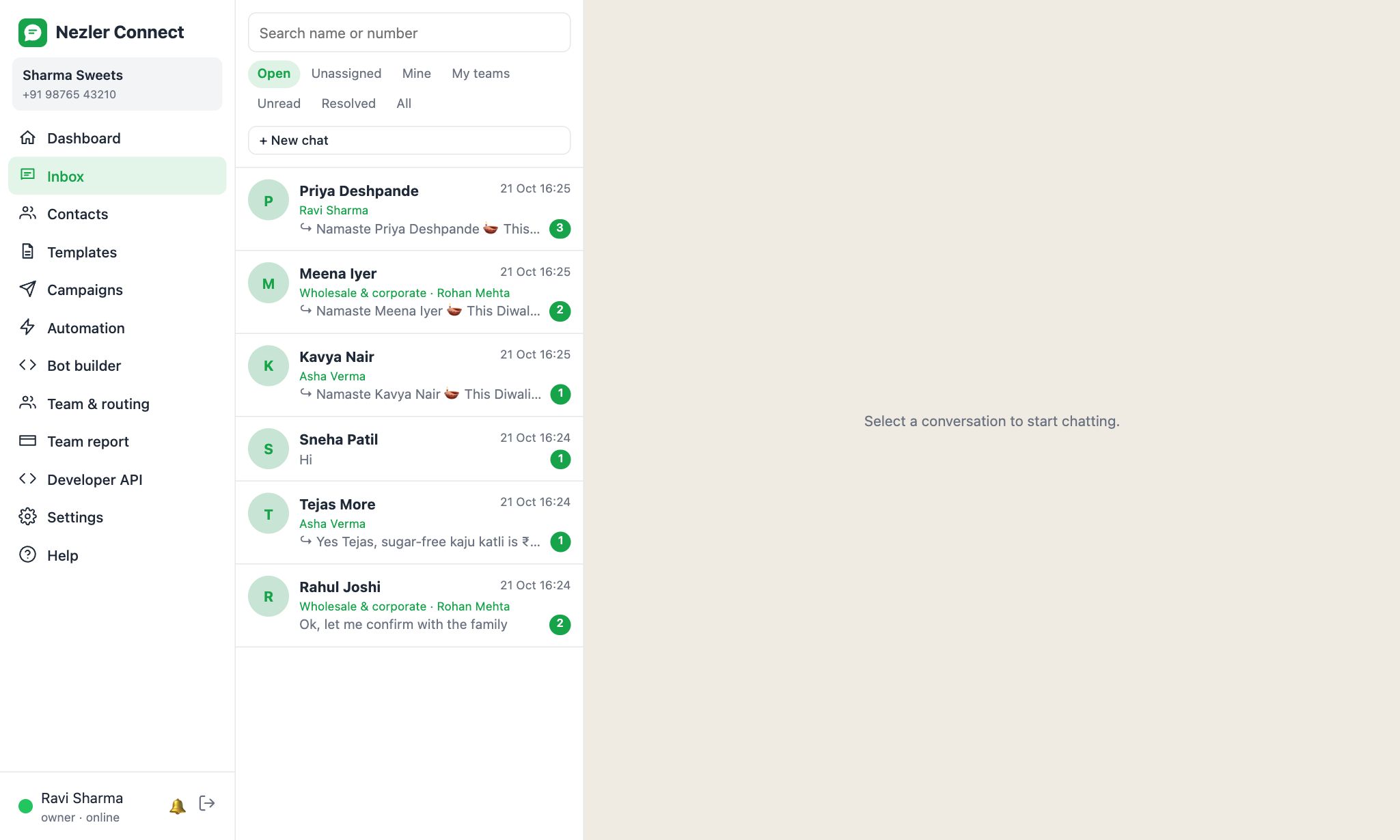
Find a chat
- Use the tabs at the top:
- Open: chats waiting to be handled
- Unassigned: chats nobody owns yet
- Mine: chats assigned to you
- My teams: chats in your teams' queues
- Unread: chats you haven't opened
- Resolved: closed chats
- All: everything
- Search by name or number in the box above the tabs.
- A green number on a chat shows unread messages. The coloured line under the name shows who it's assigned to.
Reply
- Click a chat to open it.
- Type in the box at the bottom and press Send (or Enter). Use Shift + Enter for a new line.
- To send a photo, video or document, click the paperclip. Files can be up to 16 MB.

You can format text the WhatsApp way: bold, _italic_, ~strikethrough~.
Ticks show what happened to your message: one grey tick means sent, two grey ticks delivered, and two blue ticks read. A red ! means it failed, with the reason underneath.
Quick replies
Type / in the message box to see your saved answers, then click one to insert it. Your manager can add quick replies under Automation.

Send a template
If the customer hasn't written for 24 hours, a normal message can't be sent. Click the template button instead:
- Choose the template.
- Fill in its blanks. Type
{name}to use the customer's name automatically. - Check the preview and click Send template.

Start a new chat
Click + New chat, enter the number with country code (for example 919876543210) and an optional name, and click Open chat. The first message to a new number must be a template.

Close a chat
Click Resolve when the conversation is done. It moves to the Resolved tab, and reopens automatically if the customer writes again.
New numbers, saving contacts and blocking
When a number you don't have writes to you, the chat shows "isn't in your contacts". It's a chat, not a contact, until you save it, so brands and spam don't fill up your Contacts or your campaigns.
- Save contact opens Info on the right with the contact's details: name, email, tags (tap a tag to add or remove it, or type a new one and click Add), your own columns and notes. Click Save to contacts.
- Block stops that number's messages from reaching you, and the chat leaves the inbox. WhatsApp is asked to block it too (Meta allows this within 24 hours of their last message). Unblock any time from Contacts → Blocked, or Unblock in the chat.
- Click anywhere outside Info to close it. If you changed something without saving, it asks you to Save or Discard first.