
Help › Contacts
Import from Excel and export
Bring in thousands of contacts at once, and download them any time.
Import contacts from Excel or CSV
- On the Contacts page, click Import.
- Not sure about the format? Click Download template. It has the right column names and a sample row. Fill it in with Excel or Google Sheets.
- Click the upload box, choose your file (.xlsx or .csv, up to 50,000 contacts) and click Next: match columns.

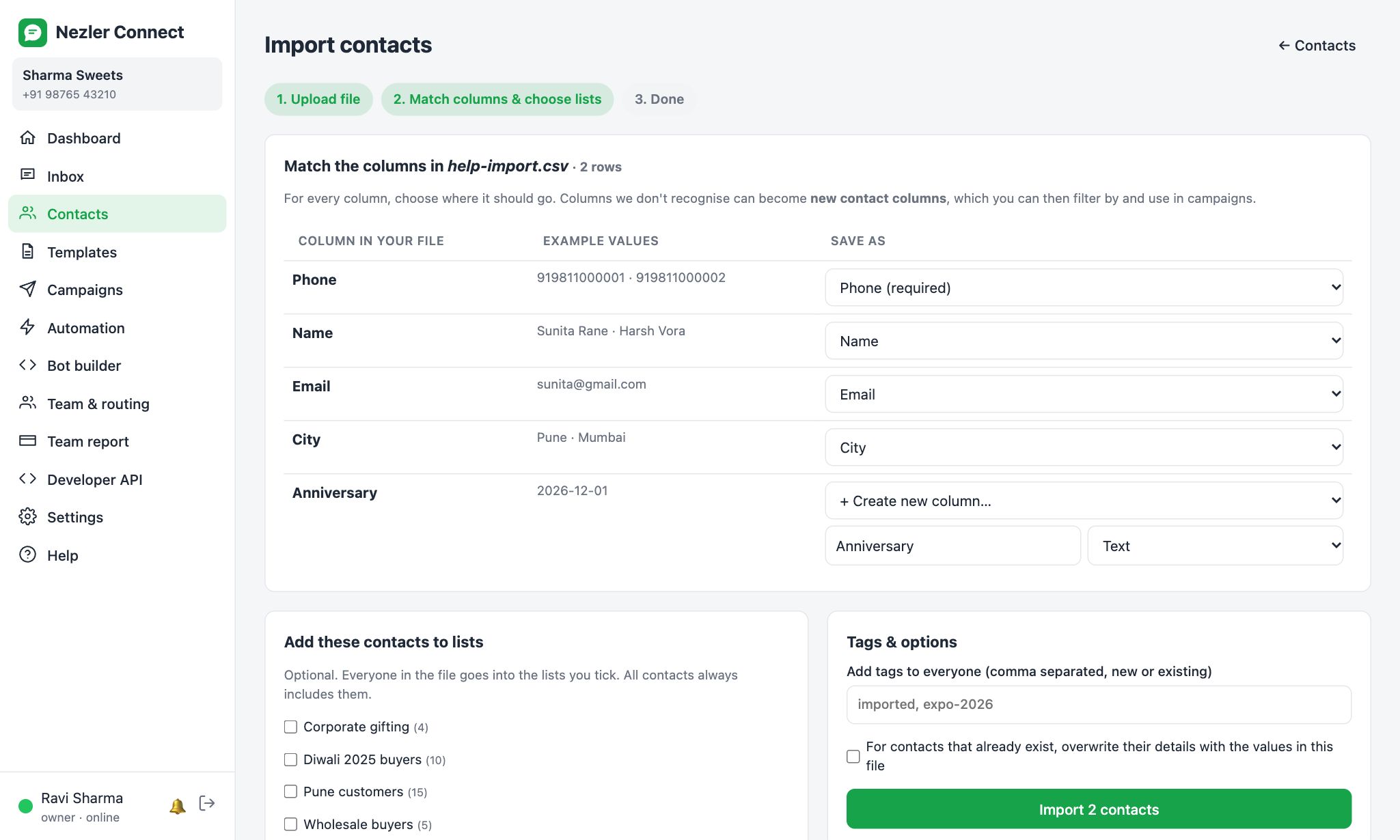
- Match the columns. For every column in your file, choose where it should go:
- an existing field, such as Phone, Name or City
- + Create new column to keep extra details. Give it a name and a type.
- — Don't import — to skip it
Phone is required. Numbers without a country code get your default country code (+91) added.
- Choose lists and tags. Tick the lists everyone in the file should join, and add tags if you like, for example "expo-2026".
- Tick overwrite if contacts that already exist should be updated with the values in the file. Otherwise only empty details are filled in.
- Click Import. A summary shows how many were added, updated and skipped, and why.
Tip Existing contacts are matched by phone number, so importing the same file twice never creates duplicates.
Export contacts
- Everyone: click Export on the Contacts page.
- One list: open the list, then click Export view.
- A filtered group: filter first, then click Export view.
- Hand-picked people: tick them and choose Export in the bulk actions bar.
The file opens in Excel and includes all your columns, lists and tags.
Important Agents may not be allowed to export contacts. The owner decides this on the Team page.