
Send a campaign
Send a template to many contacts in seven simple steps.
A campaign sends an approved template to many contacts at once, with each person's name and details filled in. Click Campaigns → + New campaign, or New campaign on the dashboard.
The wizard has seven steps. The progress bar at the top shows where you are, and you can click a finished step to go back. On the right, a phone preview shows the message exactly as customers will see it, with a summary below.
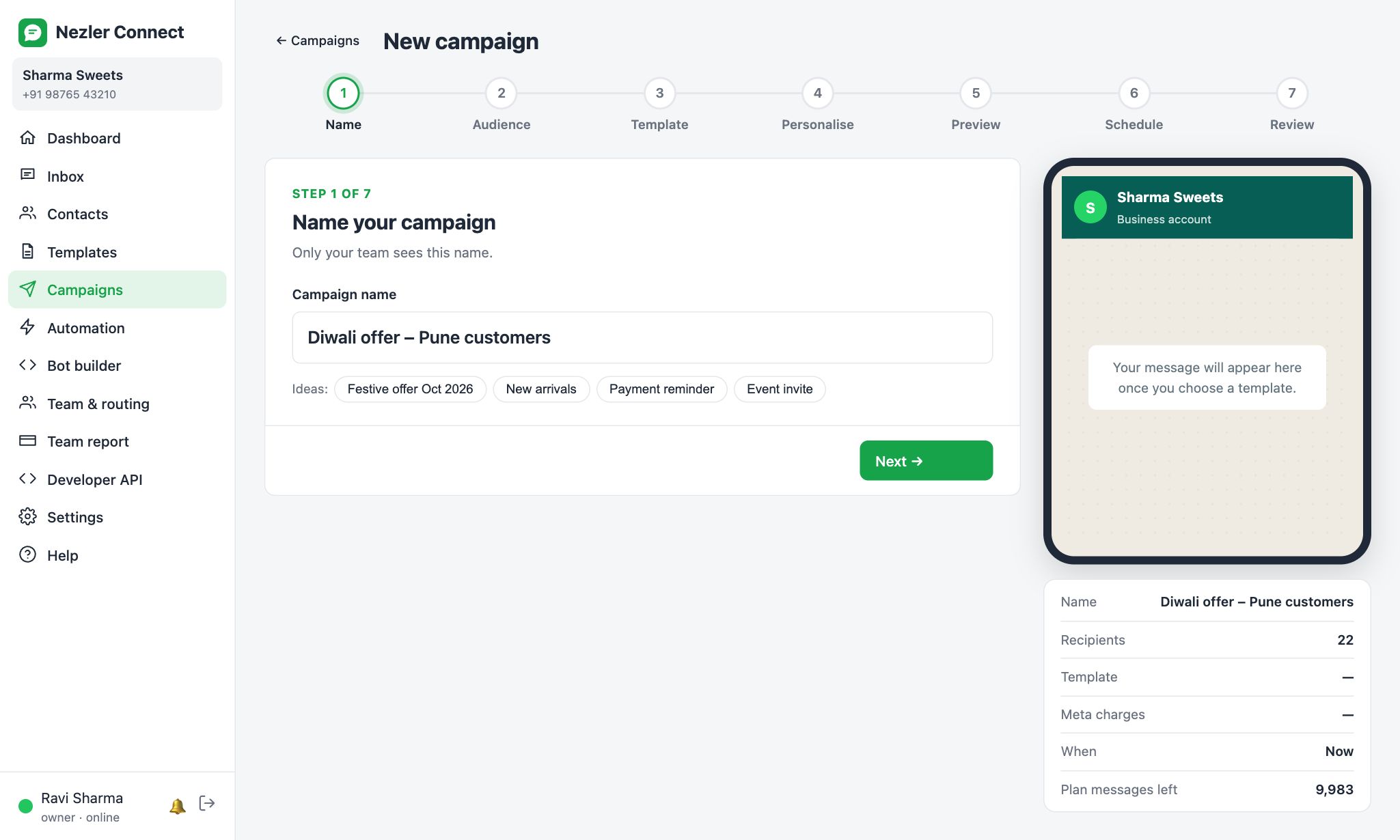
Step 1: Name
Give the campaign a name only your team sees, for example "Diwali offer – Pune customers". Click an idea to use it, or type your own.
Step 2: Audience
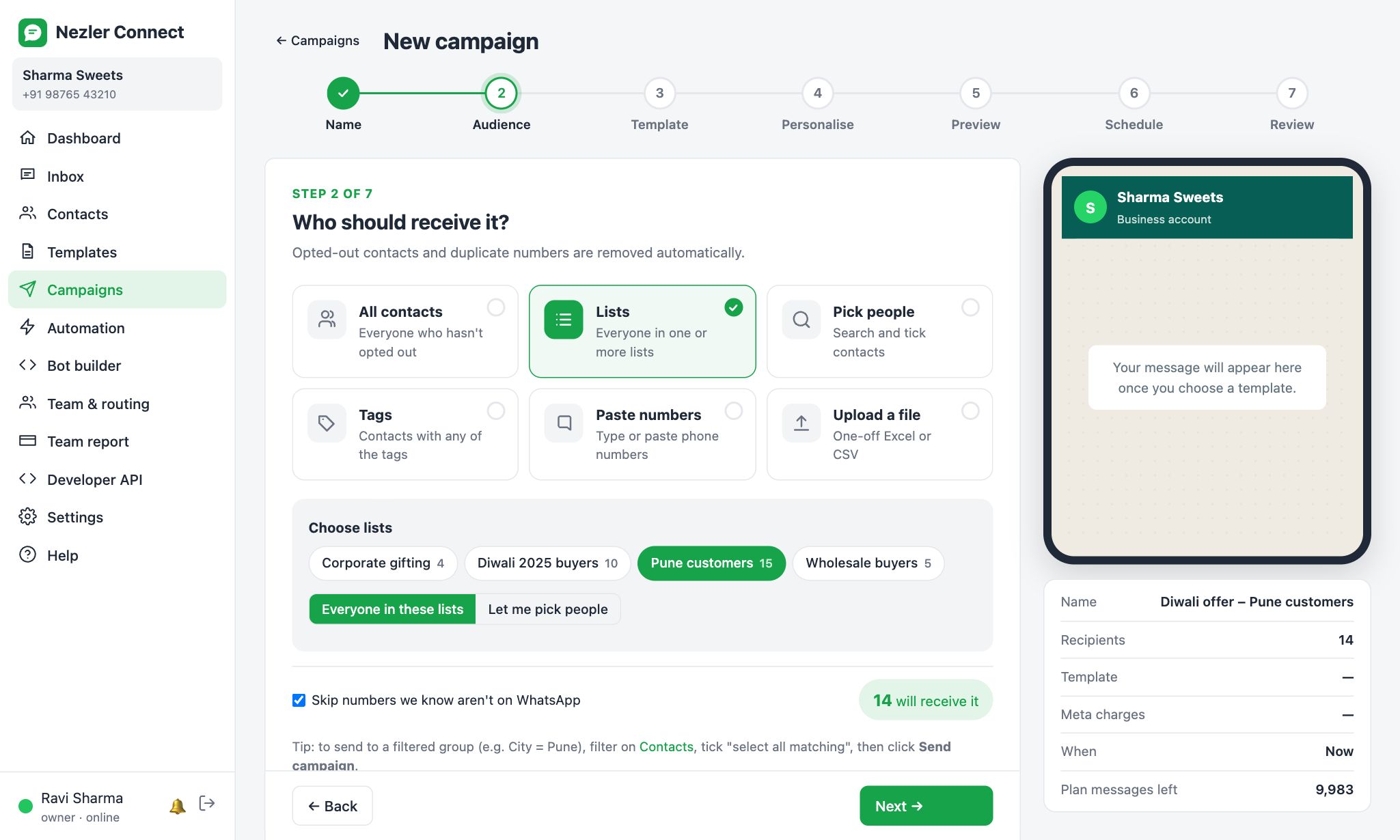
Choose who receives it:
- All contacts: everyone who hasn't opted out
- Lists: everyone in one or more lists, or choose Let me pick people to tick individuals inside them
- Pick people: search your contacts and tick them
- Tags: everyone with any of the chosen tags
- Paste numbers: type or paste numbers, one per line or separated by commas
- Upload a file: a one-off Excel or CSV of numbers. You can save it as a new list at the same time.
The green counter shows how many people will receive it. Opted-out contacts and duplicates are removed automatically. Keep Skip numbers we know aren't on WhatsApp ticked to avoid paying for messages that can't arrive.
Step 3: Template
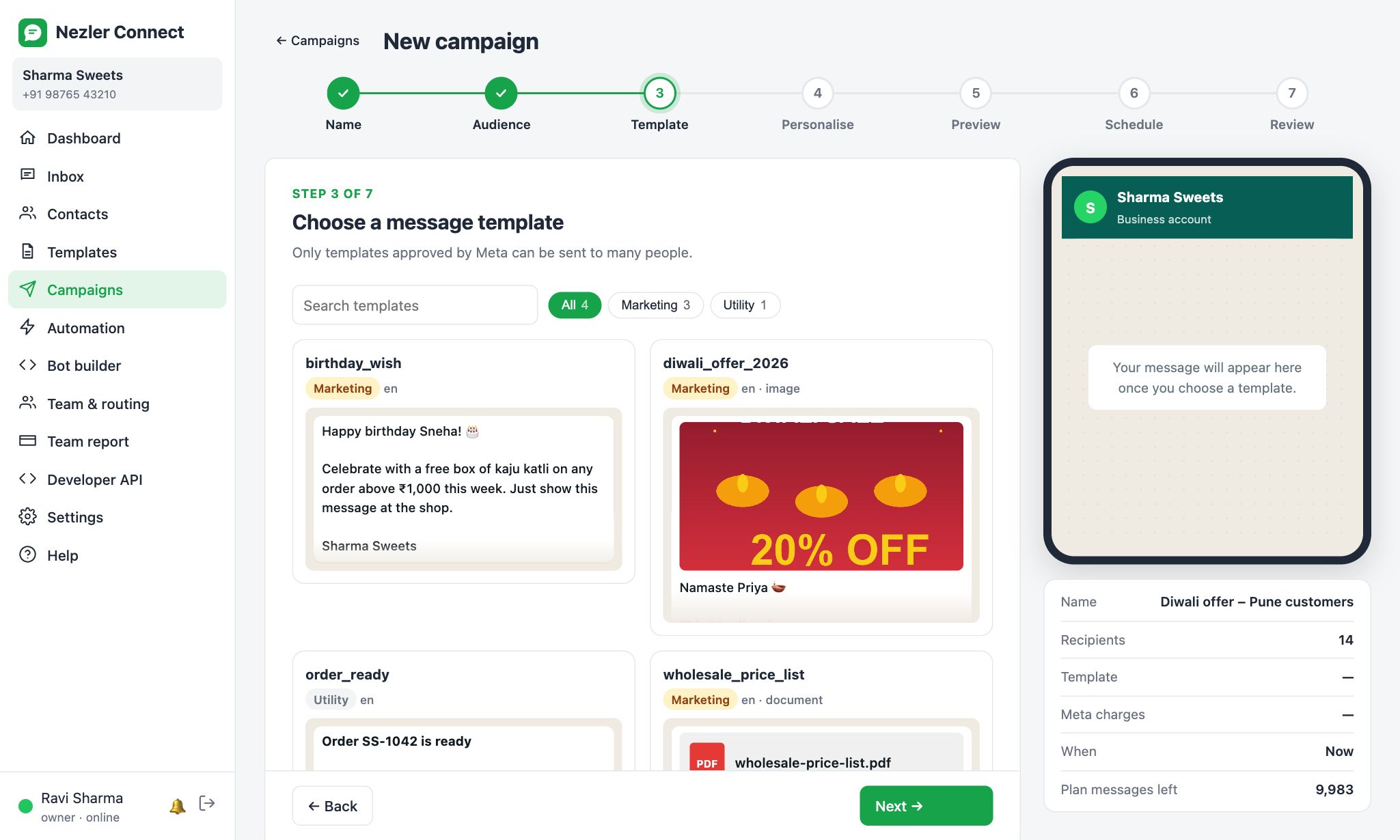
Pick an approved template. Use the search box or the category buttons to find it quickly.
Step 4: Personalise
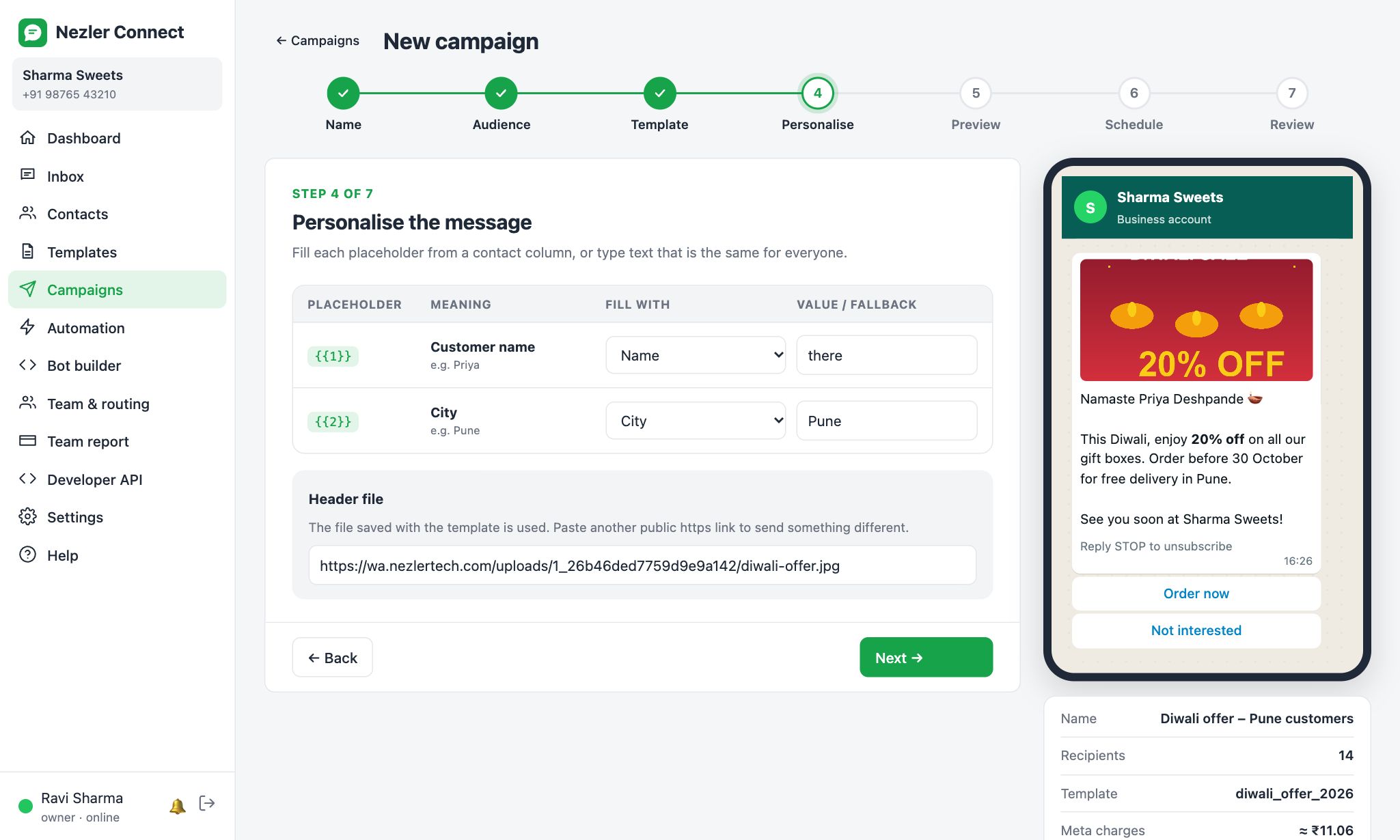
Each placeholder in the template is listed with its meaning. For each one, choose what to fill it with:
- a contact column, such as Name or City. Every person gets their own value. Add a fallback, such as "there", used when a contact's value is empty, so nobody gets "Hi ,".
- ✎ Type text: the same words for everyone, such as a date or a store name.
If the template has an image, video or PDF header, the file saved with the template is used. Paste another public link to send something different.
Step 5: Preview
See the message as your first recipients will receive it, with their real names. Then send a test to your own WhatsApp number: type it and click Send test.

Step 6: Schedule
Choose Send now, or Schedule for later and pick the date and time. Messages go out in batches of about 200 per minute.

Step 7: Review and send
Check everything once more. Click Edit on any row to change it. The yellow box shows the estimated Meta charges.
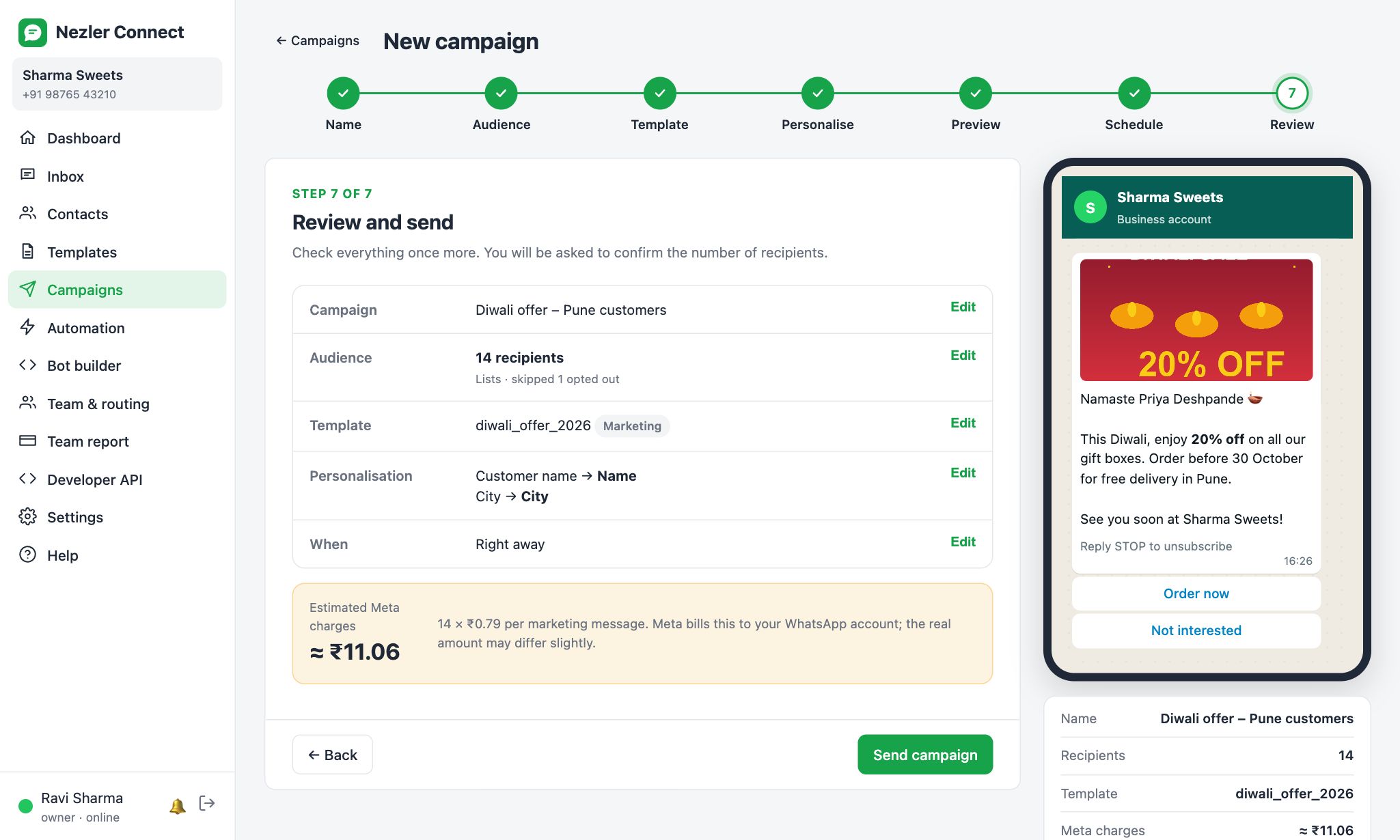
Click Send campaign. To make sure nobody sends by mistake, you must type the number of recipients before Confirm & send becomes active.
