
Help › Inbox
Assign, transfer and add notes
Share chats with your team without the customer noticing.
When several people share one WhatsApp number, these tools keep everyone in sync. The customer never sees any of them.
Assign a chat
At the top of an open chat, use the drop-down to choose who owns it. The chat then appears under that person's Mine tab, and they get a notification.
Transfer to a person or team
- Click Transfer.
- Choose a teammate or a whole team.
- Optionally add a note, for example "Wants a quote for 40 gift boxes, please call today".
- Click Transfer.

Internal notes
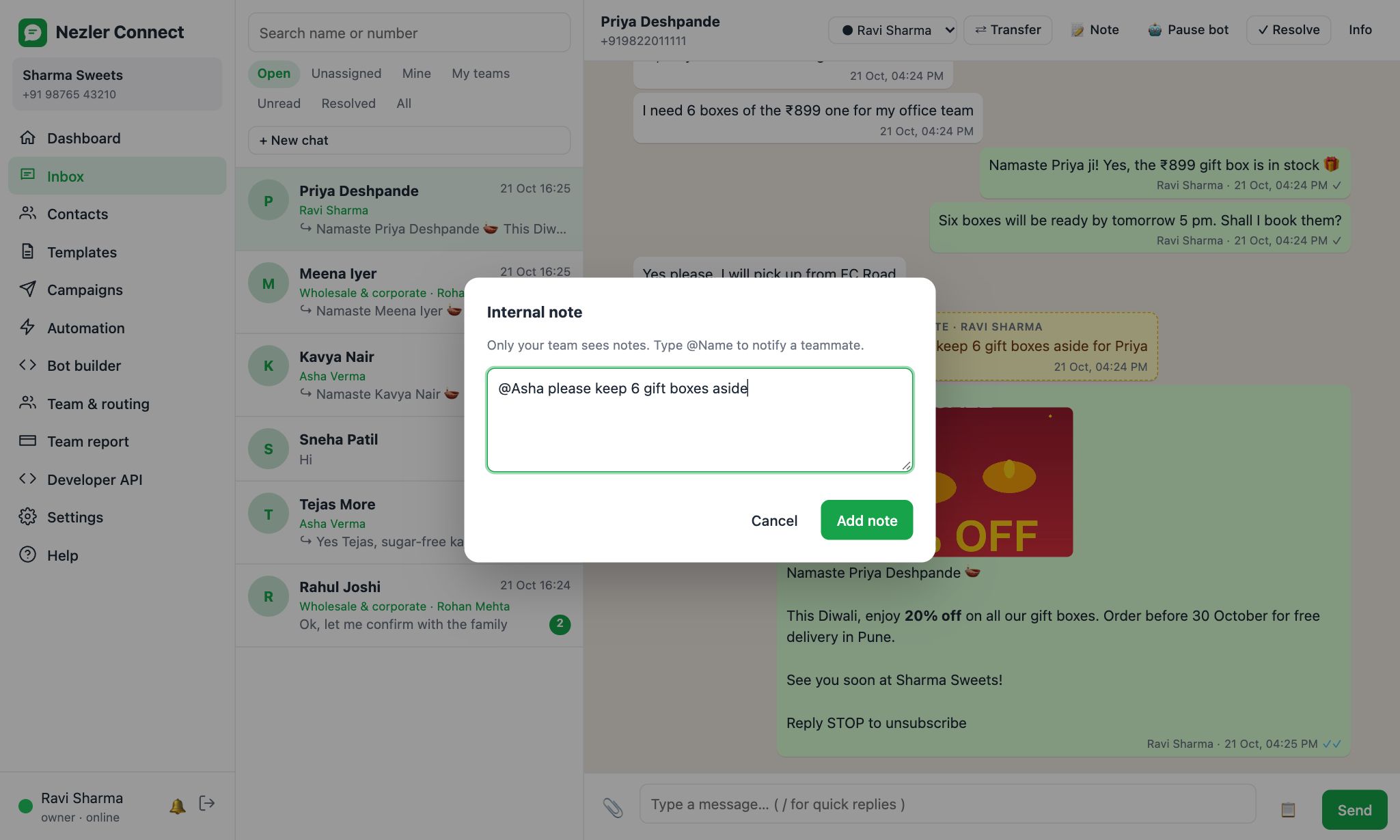
Click Note to leave a message for your team inside the chat. Notes show in yellow and are never sent to the customer. Type @ and a name, like @Asha, to notify that teammate.
Contact details and history
Click Info to open the side panel. Here you can:
- see the contact's team, lists, city and other columns
- edit tags and notes
- see the chat's history: who it was routed to, transfers and reopenings

Pause the bot
If a chatbot is talking to this customer and you want to take over, click Pause bot. The bot also stops automatically as soon as someone from your team replies. Click Resume bot to hand back.
Tip Managers and owners see all chats. Agents see their own chats and the queues of their teams. See Add team members and roles.